
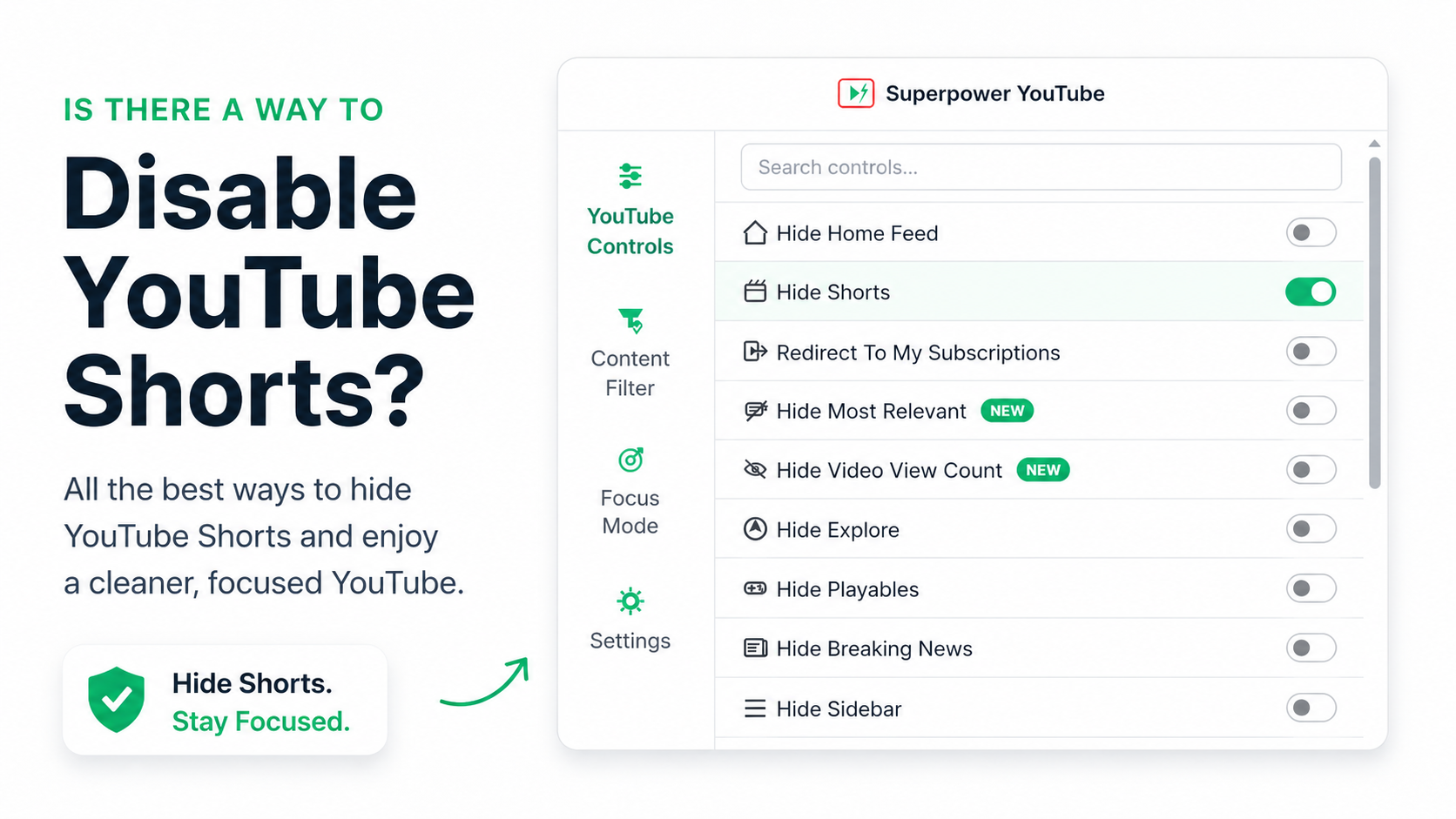
Quick answer: YouTube does not currently offer a built-in setting to permanently disable Shorts in the app or on the website. On desktop, the most reliable workaround is to use a browser extension that can hide Shorts and other distracting parts of YouTube, such as Superpower YouTube. On mobile, your options are more limited, but using YouTube in a mobile browser, adjusting feed preferences, or using app limits can help reduce how often Shorts interrupt your viewing.
YouTube Shorts are designed for quick, continuous watching. You may open YouTube to find a tutorial, lecture, or video essay, only to get pulled into a fast-moving feed of short clips. Because each video is brief and the next one starts almost instantly, it is easy to keep scrolling longer than you planned.
Many users try to fix this by clicking “Not interested” on individual Shorts. That can improve recommendations over time, but it does not remove the Shorts format itself. YouTube may still show Shorts on the home page, in search results, in subscriptions, and across other parts of the platform.
This guide explains the most practical ways to reduce or hide YouTube Shorts on desktop and mobile. You will learn why YouTube’s built-in controls are limited, how browser extensions can create a cleaner desktop experience, and which mobile workarounds can help you avoid endless scrolling.
Why do YouTube Shorts distract users so easily?
YouTube Shorts work differently from standard YouTube videos. They are short, fast, and designed to be watched in sequence. Because each clip lasts only a little while, there is no natural stopping point where you pause and decide whether you actually want to keep watching.
YouTube also places Shorts throughout the platform, including the home page, Shorts tab, recommendations, and some search results. Since Shorts are now a core part of the YouTube experience rather than a simple optional feature, YouTube does not currently provide a native toggle to turn them off completely.
Can you disable YouTube Shorts inside the app?
No, you cannot completely disable YouTube Shorts using YouTube’s built-in app settings. There is no hidden switch in your account preferences, desktop settings, or mobile app settings that removes the Shorts format.
You can try a few limited workarounds inside YouTube. For example, you can tap the three dots on a specific Short and select “Not interested.” You may also be able to temporarily hide a Shorts shelf on your home page. These actions can influence what YouTube recommends, but they do not tell YouTube to stop showing Shorts altogether. When you refresh your feed, search for a new topic, or return later, Shorts may appear again.
What are the best methods to block YouTube Shorts on desktop?
One of the most practical ways to reduce or hide YouTube Shorts is to use YouTube on a desktop browser such as Google Chrome or Mozilla Firefox. Desktop browsers support third-party extensions that can change how certain parts of YouTube appear on your screen.
A browser extension does not change YouTube’s servers or your account. Instead, it hides selected page elements in your browser. Depending on the extension and YouTube’s current interface, it may be able to hide Shorts-related areas such as the Shorts tab, homepage Shorts shelves, and short-form videos in search results. This is a option if you mainly use YouTube on desktop and want a cleaner experience than YouTube’s built-in feedback tools can provide.
How does the Superpower YouTube extension work?
One option to consider is Superpower YouTube, a Chrome extension built to give users more control over the YouTube interface. Like other browser-based tools, it works by hiding selected YouTube elements in your browser so the site feels cleaner and less distracting when you visit it.
With the Superpower YouTube Chrome extension, you can hide Shorts-related areas such as the homepage Shorts section, the Shorts tab, and short-form videos that may appear in search results. It also includes controls for reducing other common distractions, including autoplay, comments, recommendations, and attention-grabbing thumbnails.
For users who want more structure, the extension also includes features such as timed focus sessions, content filtering, and protected settings. These tools can help you reduce unwanted channels, keywords, comments, and other distractions while making it harder to undo your setup impulsively.
How can you remove YouTube Shorts on mobile devices?
Hiding YouTube Shorts on a smartphone is harder than on desktop because the official YouTube apps for Android and iOS build Shorts directly into the interface. You also cannot install standard desktop Chrome extensions inside the mobile YouTube app, so mobile users need to rely on workarounds such as mobile browsers, app limits, and feed adjustments.
Keep in mind that YouTube updates its mobile design often, so exact steps and available options may change over time. The goal on mobile is usually not to remove Shorts perfectly, but to reduce how often you see them and add friction before you start scrolling.
What are the options for Android users?
Android users have a few practical workarounds, though none are as complete as using a desktop browser extension. If Shorts are a major distraction, try watching YouTube through a mobile browser like Chrome or Firefox instead of the official app. The browser experience may feel less polished, but it can also be easier to control.
You can also disable the YouTube app if your device allows it, remove it from your home screen, or use an app blocker to limit YouTube during focus hours. These steps will not remove Shorts from YouTube everywhere, but they can reduce accidental scrolling.
What are the options for iPhone users?
iPhone users have fewer options because iOS does not allow you to directly modify the official YouTube app or install desktop-style browser extensions inside it. If Shorts are becoming a distraction, try watching YouTube through Safari instead of the app, removing the YouTube app from your home screen, or setting daily limits with Screen Time.
These workarounds will not fully remove Shorts, but they can add helpful friction. For many users, that extra friction is enough to make YouTube feel more intentional and less automatic.
Reclaim your attention span
Reducing YouTube Shorts can change how you use the platform. When the endless scrolling feed is less visible, your home page feels quieter. You are less likely to click random clips and more likely to watch the videos you actually came for.
Whether you use a desktop browser extension, a mobile browser, app limits, or a mix of these methods, the goal is the same: make YouTube easier to use on purpose. Start with the method that fits your device and habits, then adjust until your feed feels cleaner, calmer, and less likely to pull you into endless scrolling.
Frequently Asked Questions (FAQ)
Is it possible to permanently turn off YouTube Shorts?
YouTube does not currently offer a built-in setting to permanently turn off Shorts across the app or website. You can reduce some recommendations by clicking “Not interested,” but this will not remove the Shorts format. For a cleaner desktop experience, a third-party browser extension can help hide Shorts-related sections from your feed.
What is the best browser extension for blocking YouTube Shorts?
The Superpower YouTube Chrome extension is one practical option for reducing Shorts on desktop. It can hide Shorts-related areas such as the Shorts tab, homepage Shorts sections, and some short-form results, while also offering controls for other distractions like autoplay, comments, recommendations, and thumbnails.
Can I block YouTube Shorts on the mobile app?
Not completely. The official YouTube mobile app for iOS and Android does not include a built-in setting that fully blocks Shorts. If Shorts are a distraction, your best options are workarounds: use YouTube in a mobile browser, remove the app from your home screen, set Screen Time or Digital Wellbeing limits, or use an app blocker during focus hours. These steps will not remove Shorts perfectly, but they can reduce how often you encounter them.
Does the “Not interested” button stop YouTube Shorts?
No. Clicking the “Not interested” button on a YouTube Short only tells the algorithm that you dislike that specific video or creator. It may help reduce similar recommendations, but it does not disable the Shorts format or stop YouTube from showing you other Shorts in the future.